When you accept your digital document from TRUE, you choose how visible it should be. These settings control who can find and view your document — from completely public to completely private.
You can change your visibility settings at any time after acceptance.
Public — Anyone can see it. Appears in search results. Can be shared. Best for showcasing your achievement.
Unlisted — Anyone with the direct link can see it. Does not appear in search results. Can be shared manually.
Private — Only you can access it. Password protected. Hidden from search engines.
Restricted — Only the cover page is visible. Full content requires email verification. Can be shared.
Unrestricted — Full document visible to everyone who can access it. No email verification required.
When you first receive your TRUE document, you will see a screen like this:
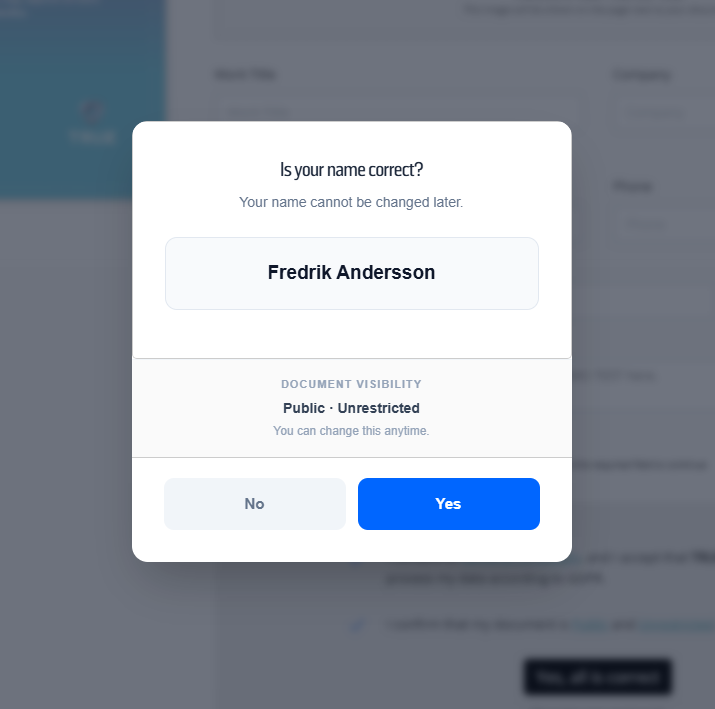
This screen asks you to confirm your name is correct (it cannot be changed after acceptance) and shows your initial document visibility settings. You can update these settings anytime after accepting.
Public means anyone can find and view your document. It appears in search engine results (like Google), so employers, colleagues, and professional connections can discover and verify your credential online.
Choose Public if: You want to showcase your achievement, add it to LinkedIn, or make it easy for employers to verify your qualification. This is what most recipients choose.
Unlisted means your document is hidden from search engines and directories — but it can still be viewed by anyone who has the direct link. Think of it like a private YouTube video: it won't show up in searches, but you can still share the link with specific people.
Choose Unlisted if: You want control over who sees your document but still want to be able to share it with employers or add it to your portfolio.
Private means only you can access your document. It's password-protected and completely hidden from search engines. If someone tries to open the link, they'll see a password prompt — not your document.
Choose Private if: Your document contains sensitive information you don't want anyone else to see, or if you simply want to keep it for your own records.
Restricted means visitors can see the cover page of your document (your name, the issuing organisation, and the credential title) but cannot see the full content. To view the full document, they need to verify their email address first.
Choose Restricted if: Your document contains detailed personal or professional information, and you want to limit full access to people who identify themselves first.
Unrestricted means the full document is visible to anyone who can access it — no email verification required. This works together with your main visibility setting:
Yes. You can update your visibility settings at any time by visiting your document page. The change takes effect immediately.
The one thing that cannot be changed after acceptance is your name as it appears on the document. Make sure it's correct before you accept.
Most recipients choose Public + Unrestricted. This makes it easy for employers to find and verify your credential, lets you share it on LinkedIn with one click, and gets you the full value of your achievement.
If your document contains sensitive personal or professional information, consider Restricted — it keeps the credential shareable while protecting the details.
Public means the document is visible, but what's shown depends on what your issuing organisation included in the credential. Most credentials show your name, the achievement, the date, and the issuing organisation.
TRUE documents do not share your email address, phone number, or other contact information publicly unless your issuer specifically included it. If you're unsure what your document contains, review it after accepting before deciding on visibility.
Yes. Anyone with the direct link can verify an Unlisted document. When you share the link (via LinkedIn, email, or your CV), the recipient can click it and confirm your credential is genuine — even though it won't appear in search results.
Nothing. Your document stays exactly as it was issued. Visibility settings remain as you set them. The credential continues to verify as authentic regardless of any changes in your professional life.
Private documents cannot be verified by others — that's the point. If you ever need to prove your credential to someone, you can change the setting to Public or Unlisted temporarily, share the link, then switch back if you wish.
If you have questions about your specific document or visibility settings, contact the organisation that issued your credential — they're best placed to advise on what setting makes sense for your situation.
Every organisation we work with started with the same question. Give us thirty minutes and we will show you what your own documents would be worth.
Book a callNot sure where to start? Let us help!

Trusted by leading organisations worldwide